


How to find Volume pricing
On the Seller hub marketing tab choose Discounts from the left hand menu, then select Volume Pricing from the blue Create a discount drop down:
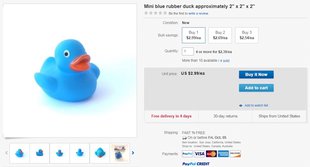
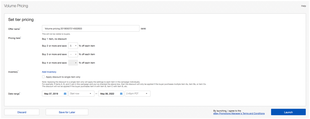
Setting up Volume pricing
- By default the Offer name is populated with a unique value when the page loads. You can alter this to be something more meaningful, that you’ll be able to find later, on your Discounts dashboard.
- Set volume pricing discounts for at least one tier, you do not have to use all three discount tiers, but you cannot leave gaps.
- Click the Add inventory link to select your items, you can:
- Choose Select items to pick items from a list.
- Click the I want to enter specific SKUs or item IDs link to copy and paste up to 500 SKUs, also known as custom labels or Item IDs. The list can be comma delimited or one per line.
- Choose Create rules to select which eBay, or Store, Categories to include inventory from. You can even choose to include All inventory here. Price filters and exclusions can be added to your . Any new, qualifying, listings in the selected categories will be included automatically in your discount.
- See the FAQ section for details on how to download a file of your SKUs, item IDs and eBay Category IDs.
- Start and end dates are pre-populated but can be altered.
- When you have finished, click Launch.
Managing Volume pricing
On your Discounts dashboard, find the volume pricing that you want to manage, using the actions drop down you can Pause, Copy or Edit an active discount, Resume, Delete or Edit a paused discount or Delete an ended discount.
When you Pause an Active promotion, the discount is no longer visible to buyers and will not be applied in cart. You can restart your promotion at any time by choosing Resume from the Action drop down.
You can Edit, an Active volume pricing discount to change the Offer name, the inventory selection or the end date, or to set, or unset, the single item discount flag:
Setting the flag means that the volume discount will only be applied when a buyer purchases multiple quantities of a single item in your volume pricing discount, not when they purchase single quantities of multiple items in your volume pricing discount. Purchasing two variations of an item is considered multiple quantities of a single item.
If you want to change the discount tiers, Pause your active discount then choose Copy from the Action drop down. You will be able to edit any fields, including the discount tiers, and Launch your new discount.